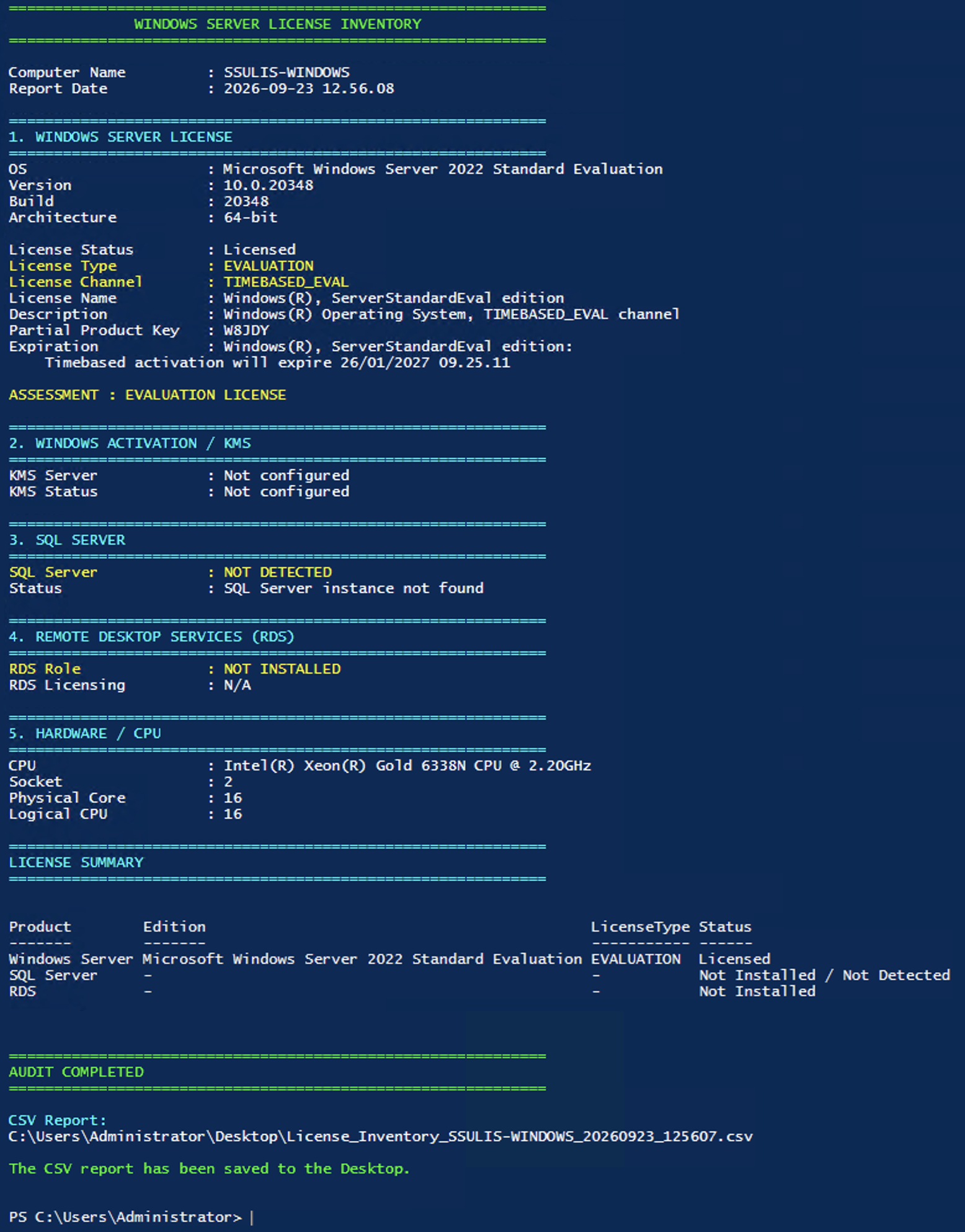
Guide Cek License Windows Server – Windows Server License Inventory
1. Tujuan
Script ini digunakan untuk melakukan pengecekan license yang terdeteksi pada Windows Server, meliputi:
- Windows Server License
- Windows Server Edition
- Windows Activation Status
- License Type
- License Channel
- KMS Configuration
- SQL Server
- SQL Server Edition & Version
- Remote Desktop Services (RDS)
- RDS Licensing Mode
- RDS CAL
- CPU / Core
- Export hasil pengecekan ke CSV
2. Persiapan
Pastikan:
- Server menggunakan Windows Server.
- User memiliki akses Administrator.
- Gunakan Windows PowerShell ISE.
- Tidak perlu mengubah Execution Policy secara permanen karena script sudah menjalankan:
Set-ExecutionPolicy-ScopeProcess-ExecutionPolicyBypass-Force
3. Menjalankan Script
Step 1 – Buka PowerShell ISE
Klik:
Start
→ Windows PowerShell
→ Windows PowerShell ISE
Kemudian pilih:
Run as Administrator
Step 2 – Buat New Script
Pada PowerShell ISE pilih:
File → New
atau tekan:
Ctrl + N
Step 3 – Copy Script
Copy seluruh script Windows Server License Inventory yang diberikan sebelumnya.
Paste ke bagian Script Pane PowerShell ISE.
Tidak perlu membuat file .ps1 terlebih dahulu.
Step 4 – Jalankan Script
Tekan:
F5
atau pilih:
Debug → Run/Continue
Script akan melakukan pengecekan secara otomatis.
# ============================================================
# WINDOWS SERVER LICENSE INVENTORY
# Copy-Paste directly into PowerShell ISE
# Run PowerShell ISE as Administrator
# ============================================================

# Allow script execution for current PowerShell session only
Set-ExecutionPolicy -Scope Process -ExecutionPolicy Bypass -Force

$ErrorActionPreference = "SilentlyContinue"

$ComputerName = $env:COMPUTERNAME
$TimeStamp = Get-Date -Format "yyyyMMdd_HHmmss"

$OutputPath = Join-Path $env:USERPROFILE "Desktop\License_Inventory_${ComputerName}_${TimeStamp}.csv"

$Inventory = @()

# ============================================================
# FUNCTIONS
# ============================================================

function Write-Section {
    param([string]$Title)

    Write-Host ""
    Write-Host "============================================================" -ForegroundColor Cyan
    Write-Host $Title -ForegroundColor Cyan
    Write-Host "============================================================" -ForegroundColor Cyan
}

function Write-Field {
    param(
        [string]$Name,
        [string]$Value,
        [ConsoleColor]$Color = [ConsoleColor]::White
    )

    Write-Host ("{0,-22}: {1}" -f $Name, $Value) -ForegroundColor $Color
}

function Add-Inventory {
    param(
        [string]$Product,
        [string]$Edition,
        [string]$LicenseType,
        [string]$Status,
        [string]$Details
    )

    $script:Inventory += [PSCustomObject]@{
        ComputerName = $ComputerName
        Product      = $Product
        Edition      = $Edition
        LicenseType  = $LicenseType
        Status       = $Status
        Details      = $Details
    }
}

# ============================================================
# HEADER
# ============================================================

Clear-Host

Write-Host ""
Write-Host "============================================================" -ForegroundColor Green
Write-Host "              WINDOWS SERVER LICENSE INVENTORY" -ForegroundColor Green
Write-Host "============================================================" -ForegroundColor Green

Write-Host ""
Write-Field "Computer Name" $ComputerName
Write-Field "Report Date" (Get-Date -Format "yyyy-MM-dd HH:mm:ss")

# ============================================================
# 1. WINDOWS SERVER LICENSE
# ============================================================

Write-Section "1. WINDOWS SERVER LICENSE"

$OS = Get-CimInstance Win32_OperatingSystem

$WindowsLicense = Get-CimInstance SoftwareLicensingProduct |
    Where-Object {
        $_.Name -like "Windows*" -and
        $_.PartialProductKey
    } |
    Sort-Object LicenseStatus -Descending |
    Select-Object -First 1

$LicenseStatus = "Unknown"
$LicenseType = "Unknown"
$LicenseChannel = "Unknown"
$PartialKey = "-"
$Description = "-"
$LicenseName = "-"
$Expiration = "-"

if ($WindowsLicense) {

    switch ($WindowsLicense.LicenseStatus) {
        0 { $LicenseStatus = "Unlicensed" }
        1 { $LicenseStatus = "Licensed" }
        2 { $LicenseStatus = "OOB Grace" }
        3 { $LicenseStatus = "OOT Grace" }
        4 { $LicenseStatus = "Non-Genuine Grace" }
        5 { $LicenseStatus = "Notification" }
        6 { $LicenseStatus = "Extended Grace" }
        default { $LicenseStatus = "Unknown" }
    }

    $LicenseName = $WindowsLicense.Name
    $Description = $WindowsLicense.Description
    $PartialKey = $WindowsLicense.PartialProductKey

    # --------------------------------------------------------
    # Detect License Type / Channel
    # --------------------------------------------------------

    if (
        $Description -match "TIMEBASED_EVAL" -or
        $Description -match "EVAL" -or
        $LicenseName -match "Eval"
    ) {
        $LicenseType = "EVALUATION"
        $LicenseChannel = "TIMEBASED_EVAL"
    }
    elseif ($Description -match "KMS") {
        $LicenseType = "VOLUME"
        $LicenseChannel = "KMS"
    }
    elseif ($Description -match "MAK") {
        $LicenseType = "VOLUME"
        $LicenseChannel = "MAK"
    }
    elseif ($Description -match "Retail") {
        $LicenseType = "RETAIL"
        $LicenseChannel = "RETAIL"
    }
    elseif ($Description -match "OEM") {
        $LicenseType = "OEM"
        $LicenseChannel = "OEM"
    }
    elseif ($Description -match "Volume") {
        $LicenseType = "VOLUME"
        $LicenseChannel = "VOLUME"
    }

    # --------------------------------------------------------
    # Expiration
    # --------------------------------------------------------

    $XPR = cscript.exe //nologo `
        "$env:SystemRoot\System32\slmgr.vbs" /xpr 2>&1

    if ($XPR) {
        $Expiration = ($XPR | Out-String).Trim()
    }
}

Write-Field "OS" $OS.Caption
Write-Field "Version" $OS.Version
Write-Field "Build" $OS.BuildNumber
Write-Field "Architecture" $OS.OSArchitecture

Write-Host ""

Write-Field "License Status" $LicenseStatus

if ($LicenseType -eq "EVALUATION") {
    Write-Field "License Type" $LicenseType Yellow
    Write-Field "License Channel" $LicenseChannel Yellow
}
else {
    Write-Field "License Type" $LicenseType
    Write-Field "License Channel" $LicenseChannel
}

Write-Field "License Name" $LicenseName
Write-Field "Description" $Description
Write-Field "Partial Product Key" $PartialKey
Write-Field "Expiration" $Expiration

Write-Host ""

if ($LicenseType -eq "EVALUATION") {

    Write-Host "ASSESSMENT : EVALUATION LICENSE" -ForegroundColor Yellow

}
elseif ($LicenseStatus -eq "Licensed") {

    Write-Host "ASSESSMENT : LICENSE ACTIVATED" -ForegroundColor Green

}
else {

    Write-Host "ASSESSMENT : CHECK LICENSE STATUS" -ForegroundColor Red
}

Add-Inventory `
    "Windows Server" `
    $OS.Caption `
    $LicenseType `
    $LicenseStatus `
    "Channel=$LicenseChannel; PartialKey=$PartialKey; Expiration=$Expiration"

# ============================================================
# 2. KMS
# ============================================================

Write-Section "2. WINDOWS ACTIVATION / KMS"

$KMSPath = `
"HKLM:\SOFTWARE\Microsoft\Windows NT\CurrentVersion\SoftwareProtectionPlatform"

$KMSConfig = Get-ItemProperty $KMSPath

$KMSServer = $KMSConfig.KeyManagementServiceName
$KMSPort = $KMSConfig.KeyManagementServicePort

if ($KMSServer) {

    Write-Field "KMS Server" $KMSServer
    Write-Field "KMS Port" $KMSPort
    Write-Field "KMS Status" "Configured" Green

}
else {

    Write-Field "KMS Server" "Not configured"
    Write-Field "KMS Status" "Not configured"
}

# ============================================================
# 3. SQL SERVER
# ============================================================

Write-Section "3. SQL SERVER"

$SQLServices = Get-Service |
    Where-Object {
        $_.Name -eq "MSSQLSERVER" -or
        $_.Name -like "MSSQL$*"
    }

if (-not $SQLServices) {

    Write-Field "SQL Server" "NOT DETECTED" Yellow
    Write-Field "Status" "SQL Server instance not found"

    Add-Inventory `
        "SQL Server" `
        "-" `
        "-" `
        "Not Installed / Not Detected" `
        "-"

}
else {

    foreach ($Service in $SQLServices) {

        if ($Service.Name -eq "MSSQLSERVER") {

            $InstanceName = "MSSQLSERVER"
            $ConnectionName = "localhost"

        }
        else {

            $InstanceName = $Service.Name -replace "^MSSQL\$", ""
            $ConnectionName = "localhost\$InstanceName"
        }

        Write-Host ""

        Write-Field "Instance" $InstanceName
        Write-Field "Service Status" $Service.Status

        $SQLFound = $false

        if (Get-Command sqlcmd.exe -ErrorAction SilentlyContinue) {

            $SQLQuery = @"
SELECT
    CAST(SERVERPROPERTY('ServerName') AS NVARCHAR(128)),
    CAST(SERVERPROPERTY('InstanceName') AS NVARCHAR(128)),
    CAST(SERVERPROPERTY('Edition') AS NVARCHAR(128)),
    CAST(SERVERPROPERTY('ProductVersion') AS NVARCHAR(128)),
    CAST(SERVERPROPERTY('ProductLevel') AS NVARCHAR(128));
"@

            $SQLResult = sqlcmd.exe `
                -S $ConnectionName `
                -E `
                -Q $SQLQuery `
                -W `
                -s "|" 2>$null

            if ($SQLResult) {

                $Line = $SQLResult |
                    Where-Object {
                        $_ -and
                        $_ -notmatch "^-+" -and
                        $_ -notmatch "ServerName"
                    } |
                    Select-Object -First 1

                if ($Line) {

                    $Fields = $Line -split "\|"

                    if ($Fields.Count -ge 5) {

                        $SQLEdition = $Fields[2].Trim()
                        $SQLVersion = $Fields[3].Trim()
                        $SQLLevel = $Fields[4].Trim()

                        $SQLFound = $true

                        Write-Field "Edition" $SQLEdition
                        Write-Field "Version" $SQLVersion
                        Write-Field "Product Level" $SQLLevel

                        Add-Inventory `
                            "SQL Server" `
                            $SQLEdition `
                            "See Agreement" `
                            "Detected" `
                            "Instance=$InstanceName; Version=$SQLVersion; ProductLevel=$SQLLevel"
                    }
                }
            }
        }

        if (-not $SQLFound) {

            Write-Field "SQL Details" `
                "SQL detected but detailed query unavailable" `
                Yellow

            Add-Inventory `
                "SQL Server" `
                "Detected" `
                "Unknown" `
                "Service Detected" `
                "Instance=$InstanceName"
        }
    }
}

# ============================================================
# 4. RDS
# ============================================================

Write-Section "4. REMOTE DESKTOP SERVICES (RDS)"

$RDSFeatures = Get-WindowsFeature |
    Where-Object {
        $_.Name -like "RDS*" -and $_.Installed
    }

$RDSService = Get-Service TermServLicensing

if (-not $RDSFeatures) {

    Write-Field "RDS Role" "NOT INSTALLED" Yellow
    Write-Field "RDS Licensing" "N/A"

    Add-Inventory `
        "RDS" `
        "-" `
        "-" `
        "Not Installed" `
        "-"

}
else {

    Write-Field "RDS Role" "INSTALLED" Green

    foreach ($Feature in $RDSFeatures) {

        Write-Field "Role / Feature" $Feature.DisplayName
    }

    # --------------------------------------------------------
    # RDS Licensing Service
    # --------------------------------------------------------

    if ($RDSService) {

        Write-Field "Licensing Service" $RDSService.Status

    }
    else {

        Write-Field "Licensing Service" "Not Installed"
    }

    # --------------------------------------------------------
    # RDS Licensing Mode
    # --------------------------------------------------------

    $RDSLicensingPath =
    "HKLM:\SYSTEM\CurrentControlSet\Control\Terminal Server\RCM\Licensing Core"

    $RDSConfig = Get-ItemProperty $RDSLicensingPath

    if ($RDSConfig -and $RDSConfig.LicensingMode) {

        switch ($RDSConfig.LicensingMode) {

            2 {
                $RDSMode = "Per Device"
            }

            4 {
                $RDSMode = "Per User"
            }

            default {
                $RDSMode = "Unknown ($($RDSConfig.LicensingMode))"
            }
        }

        Write-Field "Licensing Mode" $RDSMode

    }
    else {

        $RDSMode = "Not Configured"

        Write-Field "Licensing Mode" $RDSMode Yellow
    }

    # --------------------------------------------------------
    # RDS License Server
    # --------------------------------------------------------

    $LicenseServerFound = $false

    $PolicyPath =
    "HKLM:\SOFTWARE\Policies\Microsoft\Windows NT\Terminal Services"

    if (Test-Path $PolicyPath) {

        $Policy = Get-ItemProperty $PolicyPath

        if ($Policy.licenseServers) {

            Write-Field "License Server" $Policy.licenseServers

            $LicenseServerFound = $true
        }
    }

    if (-not $LicenseServerFound) {

        Write-Field "License Server" "Not explicitly configured"
    }

    # --------------------------------------------------------
    # RDS CAL
    # --------------------------------------------------------

    try {

        $CALPacks = Get-CimInstance `
            -Namespace "Root/CIMV2/TerminalServices" `
            -ClassName Win32_TSLicenseKeyPack

        if ($CALPacks) {

            Write-Host ""
            Write-Host "RDS CAL INVENTORY" -ForegroundColor Cyan
            Write-Host "------------------------------------------------------------"

            foreach ($CAL in $CALPacks) {

                Write-Field "Product Version" $CAL.ProductVersion
                Write-Field "Product Type" $CAL.ProductType
                Write-Field "License Type" $CAL.LicenseType
                Write-Field "Total CAL" $CAL.TotalLicenses
                Write-Field "Issued CAL" $CAL.IssuedLicenses
                Write-Field "Available CAL" $CAL.AvailableLicenses
                Write-Field "Expiration" $CAL.ExpirationDate

                Add-Inventory `
                    "RDS CAL" `
                    $CAL.ProductVersion `
                    $CAL.LicenseType `
                    "Installed" `
                    "Total=$($CAL.TotalLicenses); Issued=$($CAL.IssuedLicenses); Available=$($CAL.AvailableLicenses)"
            }

        }
        else {

            Write-Field "RDS CAL" "NO CAL PACK DETECTED" Yellow

            Add-Inventory `
                "RDS CAL" `
                "-" `
                "-" `
                "No CAL Pack Detected" `
                "-"
        }

    }
    catch {

        Write-Field "RDS CAL" "Unable to query" Yellow
    }
}

# ============================================================
# 5. HARDWARE / CPU
# ============================================================

Write-Section "5. HARDWARE / CPU"

$CPU = Get-CimInstance Win32_Processor

$Socket = ($CPU | Measure-Object).Count

$PhysicalCore = (
    $CPU |
    Measure-Object -Property NumberOfCores -Sum
).Sum

$LogicalCPU = (
    $CPU |
    Measure-Object -Property NumberOfLogicalProcessors -Sum
).Sum

$CPUModel = (
    $CPU |
    Select-Object -ExpandProperty Name -Unique
) -join "; "

Write-Field "CPU" $CPUModel
Write-Field "Socket" $Socket
Write-Field "Physical Core" $PhysicalCore
Write-Field "Logical CPU" $LogicalCPU

# ============================================================
# 6. LICENSE SUMMARY
# ============================================================

Write-Section "LICENSE SUMMARY"

Write-Host ""

$Inventory |
    Select-Object Product, Edition, LicenseType, Status |
    Format-Table -AutoSize

# ============================================================
# 7. EXPORT CSV
# ============================================================

$Inventory |
    Export-Csv `
        -Path $OutputPath `
        -NoTypeInformation `
        -Encoding UTF8

Write-Host ""
Write-Host "============================================================" -ForegroundColor Green
Write-Host "AUDIT COMPLETED" -ForegroundColor Green
Write-Host "============================================================" -ForegroundColor Green

Write-Host ""
Write-Host "CSV Report:" -ForegroundColor Cyan
Write-Host $OutputPath -ForegroundColor White

Write-Host ""
Write-Host "The CSV report has been saved to the Desktop." -ForegroundColor Green
Write-Host ""
4. Hasil Pengecekan
Script akan menampilkan beberapa bagian.
4.1 Windows Server License
Contoh:
============================================================
1. WINDOWS SERVER LICENSE
============================================================

OS                    : Microsoft Windows Server 2022 Standard Evaluation
Version               : 10.0.20348
Build                 : 20348
Architecture          : 64-bit

License Status        : Licensed
License Type          : EVALUATION
License Channel       : TIMEBASED_EVAL
License Name          : Windows(R), ServerStandardEval edition
Description           : Windows(R) Operating System,
                        TIMEBASED_EVAL channel
Partial Product Key   : XXXXX
Expiration            : ...
Parameter yang perlu diperhatikan
| Parameter | Keterangan |
|---|---|
| OS | Windows Server Edition |
| Version | Versi Windows |
| Build | Build Windows |
| License Status | Status aktivasi |
| License Type | Jenis license yang terdeteksi |
| License Channel | Channel aktivasi/license |
| Partial Product Key | 5 digit terakhir product key |
| Expiration | Informasi masa berlaku |
Contoh Evaluation
License Status  : Licensed
License Type    : EVALUATION
License Channel : TIMEBASED_EVAL
maka server tersebut menggunakan Evaluation License, walaupun License Status menunjukkan Licensed.
5. Windows Activation / KMS
Script kemudian mengecek konfigurasi KMS.
Contoh:
============================================================
2. WINDOWS ACTIVATION / KMS
============================================================

KMS Server            : kms.company.local
KMS Port              : 1688
KMS Status            : Configured
Jika tidak menggunakan KMS:
KMS Server            : Not configured
KMS Status            : Not configured
Informasi ini membantu mengetahui apakah Windows menggunakan KMS activation.
6. SQL Server
Script akan mengecek apakah terdapat SQL Server pada server.
Jika tidak ditemukan:
============================================================
3. SQL SERVER
============================================================

SQL Server            : NOT DETECTED
Status                : SQL Server instance not found
Jika ditemukan:
Instance              : MSSQLSERVER
Service Status        : Running
Edition               : Enterprise Edition
Version               : 16.0.x
Product Level         : CUxx
Informasi ini digunakan untuk inventory:
- SQL Server Instance
- SQL Server Edition
- SQL Server Version
- Product Level
- Service Status
Catatan: SQL Server Edition yang terdeteksi dari server tidak secara otomatis membuktikan bahwa license entitlement perusahaan sudah sesuai. Untuk compliance tetap perlu dibandingkan dengan Microsoft licensing agreement/entitlement.
7. Remote Desktop Services
Script juga mengecek RDS.
Jika RDS tidak terinstall:
============================================================
4. REMOTE DESKTOP SERVICES (RDS)
============================================================

RDS Role              : NOT INSTALLED
RDS Licensing         : N/A
Jika RDS terinstall:
RDS Role              : INSTALLED
Role / Feature        : Remote Desktop Session Host
Licensing Service     : Running
Licensing Mode        : Per User
License Server        : RDS-LICENSE01
8. RDS CAL
Jika server merupakan RDS License Server dan CAL dapat dideteksi, hasilnya akan ditampilkan seperti:
RDS CAL INVENTORY
------------------------------------------------------------

Product Version       : Windows Server 2022
Product Type          : RDS CAL
License Type          : Per User
Total CAL             : 50
Issued CAL            : 32
Available CAL         : 18
Expiration            : ...
Informasi utama:
| Parameter | Keterangan |
|---|---|
| Product Version | Versi RDS CAL |
| Product Type | Jenis CAL |
| License Type | Per User / Per Device |
| Total CAL | Total CAL yang terinstall |
| Issued CAL | CAL yang sudah digunakan |
| Available CAL | CAL yang masih tersedia |
| Expiration | Masa berlaku jika tersedia |
9. Hardware / CPU
Script juga mengambil informasi CPU.
Contoh:
============================================================
5. HARDWARE / CPU
============================================================

CPU                   : Intel(R) Xeon(R) Gold 6338N CPU @ 2.20GHz
Socket                : 2
Physical Core         : 16
Logical CPU           : 16
Informasi ini berguna terutama untuk inventory dan assessment SQL Server Per Core licensing.
10. License Summary
Bagian ini merupakan quick overview dari license yang ditemukan.
Contoh:
============================================================
LICENSE SUMMARY
============================================================

Product          Edition                         LicenseType   Status
-------          -------                         -----------   ----------------
Windows Server   2022 Standard Evaluation       EVALUATION    Licensed
SQL Server       -                               -             Not Installed
RDS              -                               -             Not Installed
RDS CAL          -                               -             No CAL Pack
Bagian ini dapat digunakan untuk melihat secara cepat:
- Apa saja software/license yang terdeteksi.
- Edition yang digunakan.
- Jenis license.
- Status license.
11. CSV Report
Setelah proses selesai, script akan otomatis membuat file CSV di Desktop.
Contoh:
C:\Users\<username>\Desktop\
License_Inventory_SERVER01_20260923_124500.csv
Nama file menggunakan format:
License_Inventory_<ComputerName>_<DateTime>.csv
Contoh:
License_Inventory_SSULIS-WINDOWS_20260923_124500.csv
File tersebut dapat dibuka menggunakan Microsoft Excel.
12. Informasi yang Dicatat untuk Inventory
Untuk kebutuhan license inventory, informasi utama yang perlu diperhatikan adalah:
Windows Server
Computer Name
OS / Edition
Version
Build
License Status
License Type
License Channel
Expiration
KMS Server
SQL Server
Instance
Service Status
Edition
Version
Product Level
CPU / Physical Core
RDS
RDS Role
Licensing Service
Licensing Mode
License Server
RDS CAL
Total CAL
Issued CAL
Available CAL
13. Contoh Interpretasi
Misalnya hasil server:
Windows Server
Edition       : Windows Server 2022 Standard Evaluation
Status        : Licensed
License Type  : EVALUATION
Channel       : TIMEBASED_EVAL
Maka pada inventory dapat dicatat:
| Item | Result |
|---|---|
| Windows Edition | Windows Server 2022 Standard |
| License Type | Evaluation |
| License Channel | TIMEBASED_EVAL |
| Activation Status | Licensed |
| Review | Evaluation license |
Jadi jangan hanya melihat License Status = Licensed. License Type dan License Channel juga harus diperiksa.
14. Troubleshooting
Script tidak berjalan
Pastikan PowerShell ISE dijalankan sebagai:
Administrator
Kemudian tekan:
F5
SQL Server terdeteksi tetapi detail tidak muncul
Script menggunakan sqlcmd.exe untuk mengambil detail SQL Server.
Cek apakah tersedia:
Get-Commandsqlcmd.exe
Jika tidak ditemukan, hasil SQL Server mungkin hanya menunjukkan bahwa service SQL Server terdeteksi.
RDS CAL tidak muncul
Jika:
RDS CAL : NO CAL PACK DETECTED
bukan berarti perusahaan pasti tidak mempunyai RDS CAL.
Artinya CAL pack tidak dapat dideteksi pada server yang sedang diperiksa.
RDS CAL dapat saja berada pada RDS License Server yang berbeda.
15. Output yang Digunakan untuk Audit
Untuk setiap server, simpan:
1. Screenshot / output License Summary
2. CSV License Inventory
Kemudian inventory dapat dikumpulkan menjadi satu database/Excel dengan struktur:
Server
   ↓
Windows License
   ↓
SQL Server
   ↓
RDS
   ↓
RDS CAL
   ↓
CPU/Core
Catatan: hasil script merupakan technical license discovery. Untuk menentukan compliance secara final, hasil tersebut tetap perlu dibandingkan dengan license entitlement atau Microsoft agreement yang dimiliki perusahaan.